
Your First Workflow
Follow a customer email from start to finish: the agent reads it, drafts a reply from your documents, and waits for your approval.
Start with a job you already know well: replying to an email about a service. In this guide, you describe that job to Trelium in your own words, give the agent a short document to read from, and test a reply before anyone sends it. Your team builds the agent this way, and the Trelium team helps with setup when you need it.
Example data
The example uses a company Gmail inbox and a team onboarding service. The service, email, and prices are made up. Use your own approved information when you build your agent.
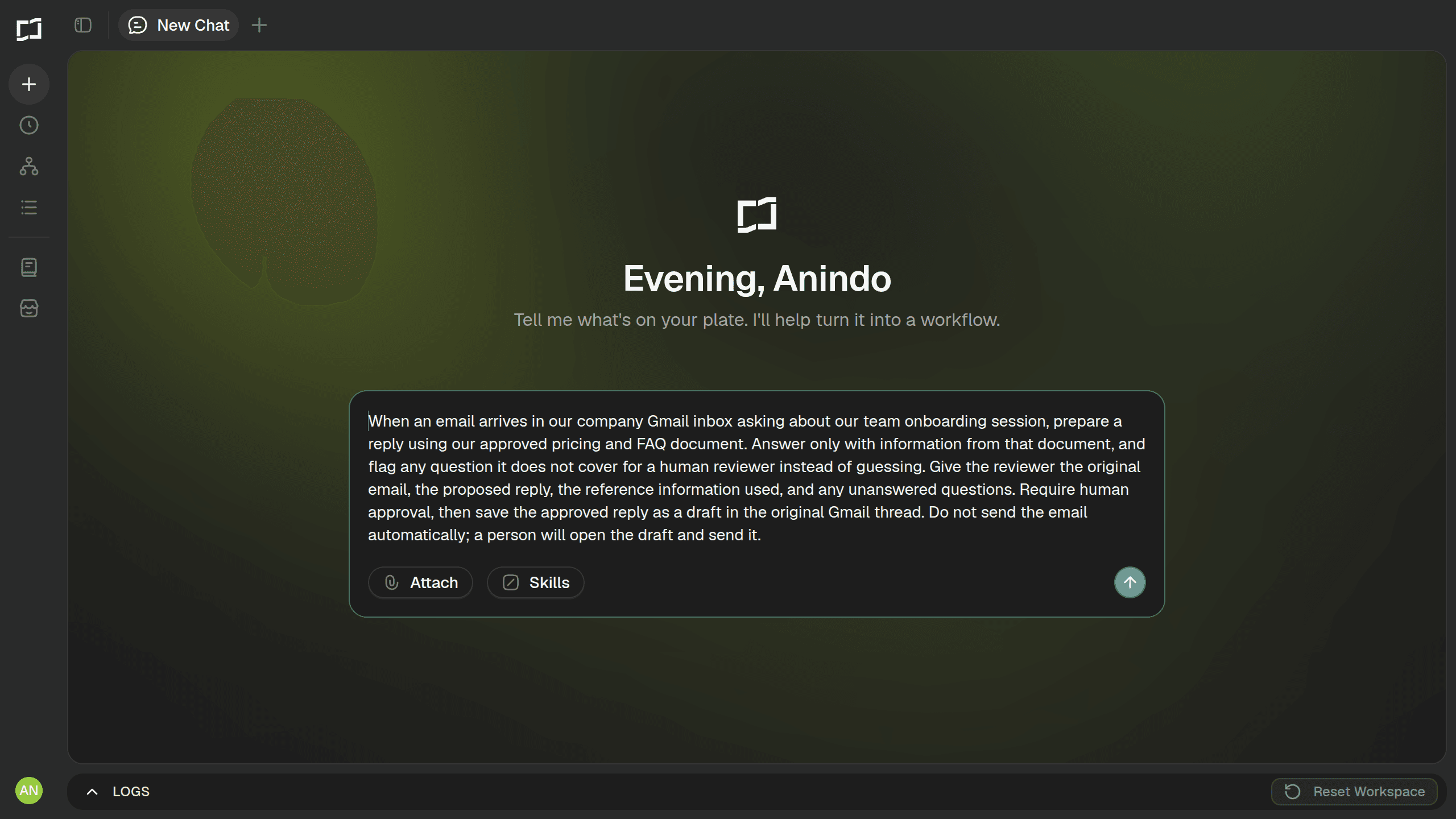
Start with this prompt
Describe the whole job in your own words. Say what starts it and where the answers come from. Say when a person must step in and what the finished result should be.
When an email arrives in our company Gmail inbox asking about our team onboarding session, prepare a reply using our approved pricing and FAQ document. Answer only with information from that document, and flag any question it does not cover for a human reviewer instead of guessing. Give the reviewer the original email, the proposed reply, the reference information used, and any unanswered questions. Require human approval, then save the approved reply as a draft in the original Gmail thread. Do not send the email automatically; a person will open the draft and send it.
Paste this prompt into Trelium. Before you test, check that the setup names the document it reads from. Also check that it asks for a person's approval and ends with a draft only.
Give the agent its reference information
The prompt tells the agent to use an approved document. Prepare that document and give the agent access to it. The agent also needs access to the inbox it will read.
For this test, put these facts in the document. Keep the scheduling rule clear. That way a requested date is never treated as a confirmed booking.
| Item | Approved information |
|---|---|
| Service | Team onboarding session |
| Price | $200 per session for up to 10 people |
| Duration | 60 minutes |
| Scheduling | A team member must confirm the requested date |
| Cancellation | Full refund up to 72 hours before the confirmed session; after that, credit toward a future session |
To follow along without writing your own, download the example pricing and FAQ document (PDF). It contains these facts and a short FAQ for the same fictional service.
Use one up-to-date document for these answers. If the agent cannot read it, it should ask a person to look. It should never make up a price.
Attaching the pricing and FAQ document. Drag the file into the chat box, or use Attach, so it is sent along with the starting prompt.
Answer the follow-up questions
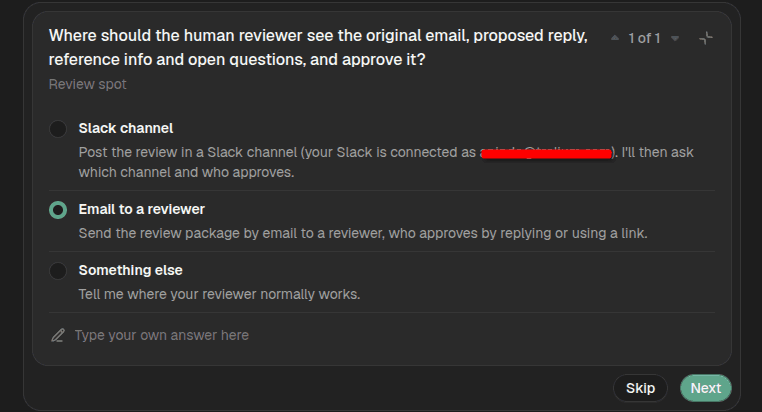
Trelium reads your prompt and asks about anything it still needs. For example, it may ask where the reviewer should see the proposed reply and how approval works. Answer these before testing. Your answers become part of the agent's job, so a vague answer now means a vague job later. The options Trelium offers depend on the tools you have connected, so yours may look different from this example. In this walkthrough, choose the options that mark unanswered questions with a placeholder and save nothing without approval.
Confirm the plan
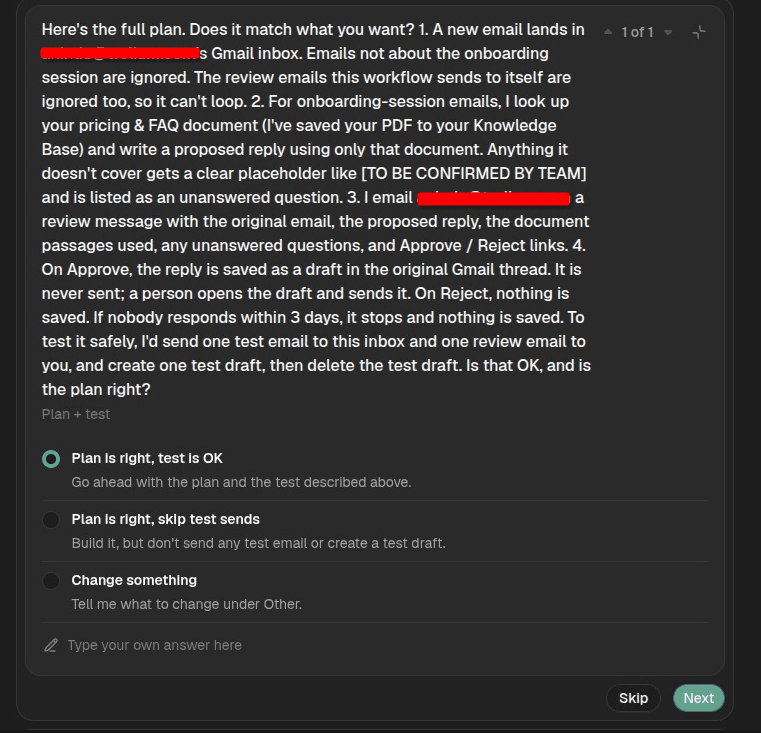
Before anything is built, Trelium repeats the full plan back to you. It covers what starts the job, the rules, and the safe test it will run. Then it waits for you to confirm. Nothing is built until you say the plan is right.
Try one inquiry
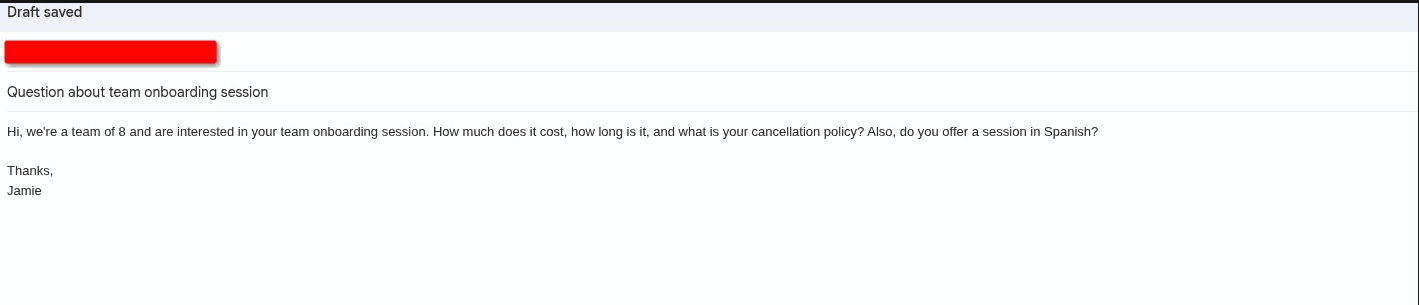
Test with the email below before you use the agent on real customers. It asks three questions the document can answer. It asks one that needs a person.
Hi, we're a team of 8 and are interested in your team onboarding session. How much does it cost, how long is it, and what is your cancellation policy? Also, do you offer a session in Spanish?
This incoming email is what starts the job, as described in your prompt. The agent needs the email and the document it reads from to do the work. Check that it picks up all four questions. It should use the group size to find the right price. It should also notice that the document says nothing about sessions in Spanish.
Check the proposed reply
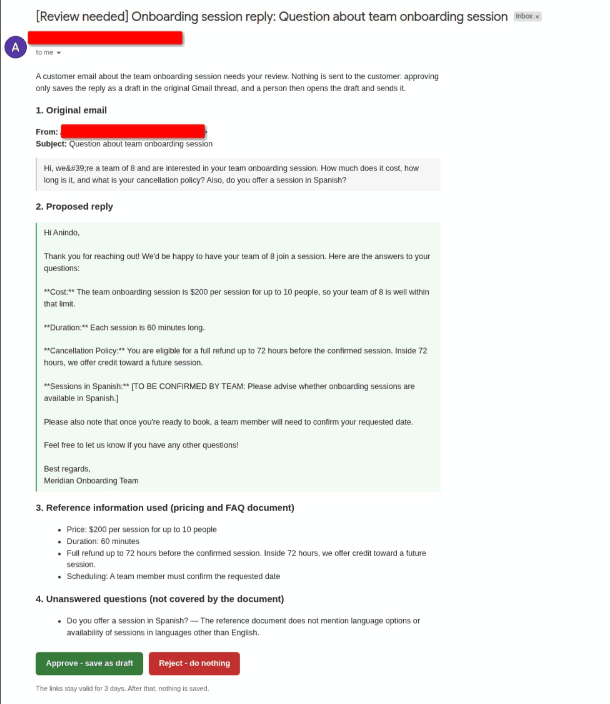
Your prompt limits the agent to facts in the document. The proposed reply arrives in a review email. Next to it, you will see the information the agent used and any questions it could not answer. For this email, the reply should:
- Quote $200 per session, since a team of 8 is within the 10-person limit.
- Give the 60-minute duration and the cancellation policy from the document.
- Mark the Spanish question with a placeholder such as
[TO BE CONFIRMED BY TEAM]instead of answering it.
Check the price, group size, length, and cancellation terms against the document. The Spanish question must stay unanswered in the reply. It must also appear in the list of unanswered questions for the reviewer.
Check before continuing
This is the checking step your prompt asked for. If the reply makes up a discount or promises a session in Spanish, fix the instructions and run the test again. Do this before you use the agent on real emails.
Review the draft
The review email from the previous step is how the work is handed to a person. It shows the original email, the proposed reply, the information behind it, and the unanswered Spanish question. Check that this gives a person enough to review the reply without digging for more.
Approve the draft only when it is ready, or Reject it so it can be corrected. In this example, approving means the reply can be saved as a Gmail draft. It does not mean the agent can send it. Clicking Approve opens a confirmation page before anything is saved. Review links stay valid for 3 days; after that nothing is saved.
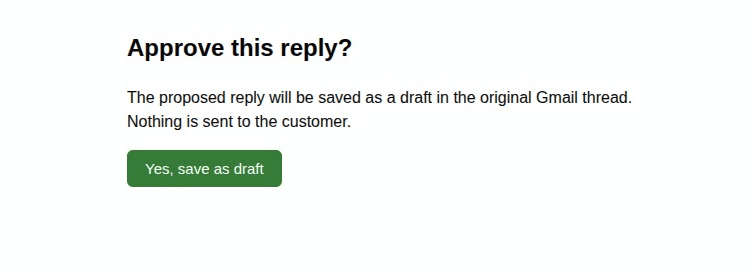
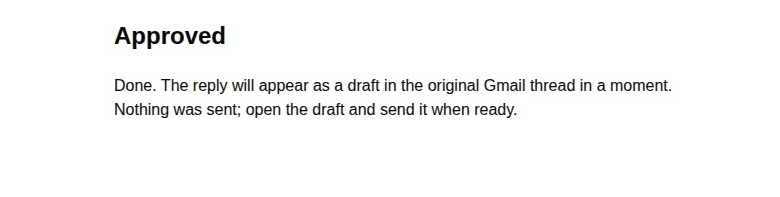
After you confirm, Trelium saves the draft. It then tells you that nothing was sent.
Confirm the finished result
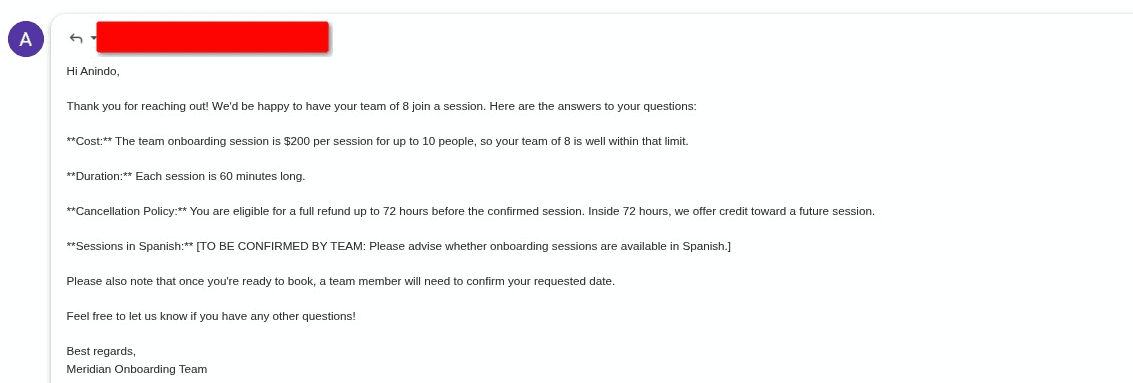
Open the original Gmail thread and look for the approved draft. Confirm that its wording matches the reply you reviewed. Also confirm that no email was sent automatically. The job ends with the approved draft in the right thread. Sending is a separate step for a person. Before sending, they should replace any placeholder, such as the one for the Spanish question.
Look at the run
Open the agent's workspace and select Activity log. Each row is one run. It shows whether the run finished, which apps it used, how many credits it used, when it started, and how long it took. Open the run for your test inquiry to see each step it took and when. The log shows what the agent did. To judge whether the reply was right, compare it with the original email and the reference document. See Logs & Audit Trails.
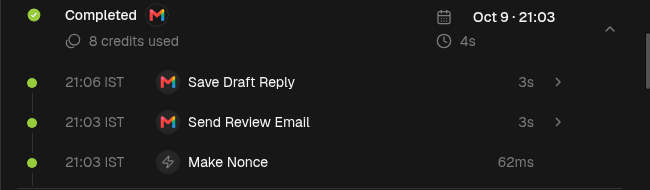
The run for the test inquiry. Steps are listed newest first: the agent sent the review email at 21:03, and saved the draft reply at 21:06, after the reviewer approved it.
Test the boundary
Try a second email asking for a session for 20 people. The document covers up to 10. The agent should flag the price question. It should not double the price or invent another rate. You now have a small agent with a clear start and a result you can check. Improve the starting prompt and repeat these tests. Do this before you give the agent more services or tasks.
Next steps
Use these pages to improve the agent you just tested, or to plan your next one. They explain how to pick and write down a job, what starts it, what to do when something looks wrong, and where a person should step in.
Choosing a Workflow
Pick the next job to give an agent.
Define a Workflow
Write the job down before you build it.
Triggers and inputs
Choose what starts a job and which documents it reads from.
Validation and exceptions
Set up checks and decide what happens to questions the agent cannot answer.
Human in the loop
Decide where a person reviews the work.
How Trelium Works
A teaching model of how a Trelium agent finishes a job in eight stages. Covers how a job starts, where AI is used, how results are checked, when a person reviews, and how every job is recorded.
Choosing a Workflow
How to pick the first job to give a Trelium agent. A short checklist covering how often the job happens, how it starts and ends, where the information lives, and how easy it is to check.