
Purchase Order Entry
How a Trelium agent turns a customer's purchase order into a draft sales order in your order system. Covers what comes in, the software used, the nine stages, the rules it checks, when a person steps in, which parts use AI, and three example POs.
A purchase order entry agent reads each customer PO that comes in by email. It works out who sent it and what they ordered, checks it against your records and rules, and creates a draft sales order in your order system. If everything checks out, the agent creates the draft without anyone needing to review it first, and the order desk still releases it. If something doesn't match, the agent stops and asks a person, so a wrong price or an unknown customer never turns into an order without someone checking it first.
Write your own version first
This recipe follows the example on Define a Workflow. Use the template on that page to write a version that fits your customers, your software, and your rules.
A PO entry agent at work, from Trelium's video AI Agent that automates the tedious task of entering Purchase Orders. The stages below explain each part of the job, and the screenshots come from a separate example build that uses a Google Sheet as the order system.
At a glance
| Part | In this recipe |
|---|---|
| What comes in (inputs) | A customer email with the PO attached as a PDF or spreadsheet, or typed in the email itself |
| Software it uses (systems) | The inbox the POs arrive in, your order system, which holds your customers, items, agreed prices, and orders, and the quantity limit your team sets for each customer |
| Steps | The nine stages below, from the PO arriving to the job being recorded |
| Rules it checks (business rules) | Known customer, known items, agreed prices, quantities within each customer's limit, PO not entered before, ship-to address and date given |
| How it checks (validation) | It compares each rule with what is in your order system before entering anything |
| Problems it flags (exceptions) | Anything that fails a check, such as a price below the agreed price or a customer it can't find |
| Where a person steps in (human review) | A person deals with every problem, and signs off any line with a different price from the agreed one |
| What it produces (outputs) | A draft sales order in your order system, a message to a person when something doesn't match, and a record of the job |
What comes in
The agent works on the customer's email and anything attached to it. POs rarely arrive the same way twice. One customer sends a PDF, another sends a spreadsheet, and a third types the order into the email. The agent reads each one and picks out the same details every time. See Triggers & Inputs.
The software it uses
This recipe uses two pieces of software. The inbox is where POs arrive, and a shared inbox such as orders@ works better than one person's inbox. Your order system holds your customers, your items, the prices you agreed with each customer, and the orders themselves. If your agreed prices are kept somewhere else, such as a spreadsheet, the agent needs access to that too. The same goes for your quantity limits: the lowest and highest quantity your team accepts from each customer. Your team sets these limits, and the agent reads them wherever you keep them.
If your order system has a built-in connection for other software (called an API), the agent uses it. If not, it can log in and use the same screens your team does, which Trelium calls a browser agent. Check the Integrations page or ask the Trelium team about the system you use. You don't move your data or switch software, and your orders stay in your order system.
The nine stages
The agent's work is recorded in runs, and one run can handle more than one PO, as the Activity log example below shows. Every PO goes through these stages.

The Flow of an example PO entry agent. In this example build, a Google Sheet stands in for the order system. Problems go to a person by email, and clean POs become a draft sales order row.
1. The PO arrives
A new email in the orders inbox starts the job. Trelium calls this the trigger, and the email and its attachment are the input.
2. Read the email or document
The agent reads the email and any attachment, whatever form the customer used. This is reading and understanding, so AI does it. What it reads is treated as a first draft that the later stages check, not as a final answer.
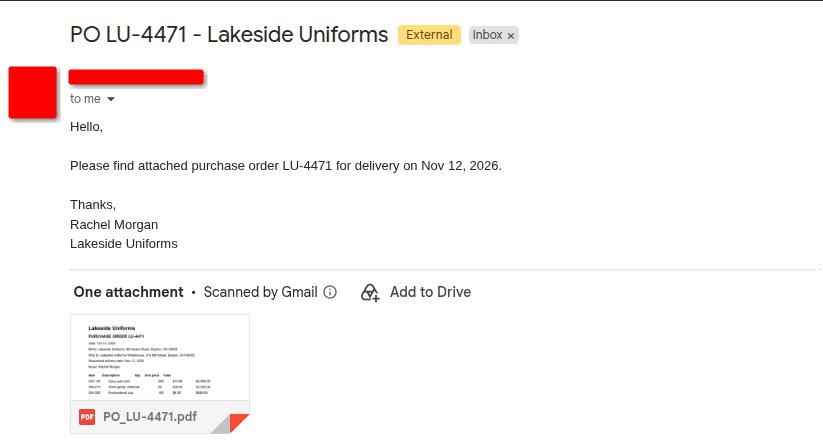
PO 1 from the example below, as it arrives in the orders inbox: a short email with the PO attached as a PDF.
3. Work out who the customer is
The agent works out which customer sent the PO from clues in the email and the document, such as the sender, the company name, and the bill-to details. AI suggests a match, and stage 5 checks it against your customer list. If no customer fits, or more than one does, the agent doesn't guess.
4. Pick out the order details
The agent picks out the PO number, the item, quantity, and price on each line, the ship-to address, and the requested date. Customers often describe items in their own words, so matching each line to the right item in your system is also reading work. Everything it picks out is still a draft at this point.
5. Look things up
The agent looks up the customer, each item, and the price agreed with this customer in your order system, along with this customer's quantity limit. It also checks whether this PO number has been entered before. It looks these up at the time, so it works from today's prices and records, not an old copy.
6. Check against your rules
The agent compares what it read with your rules. Is the customer in your system? Is every item? Does each price match the agreed price? Is each quantity within this customer's limit? Is anything missing? These checks follow set rules and work the same way every time. See Validation & Exceptions.
7. Send problems to a person
If a check fails, the agent does not create the order. Trelium calls this an exception. The PO goes to a person, who sees what the agent wants to do and why it stopped. What happens next depends on the problem, as the table further down shows. See Human in the Loop.
8. Create the sales order draft
Once every check passes, and anything that needs a sign-off has one, the agent creates a draft sales order in your order system with the customer's PO number on it. This recipe is about new POs, so it always creates a new draft. A revised PO for an order you have already entered belongs in a separate order modification workflow, not in this one.

The draft sales order the agent created for PO 1, with the customer's PO number on it. Its status is awaiting release, because the order desk still releases it. In this example build the order system is a spreadsheet.
9. Keep a record
The job is saved in the agent's Activity log, its history of every job it has handled. The log shows each step the agent took, when it happened, and how the job ended. See Logs & Audit Trails.
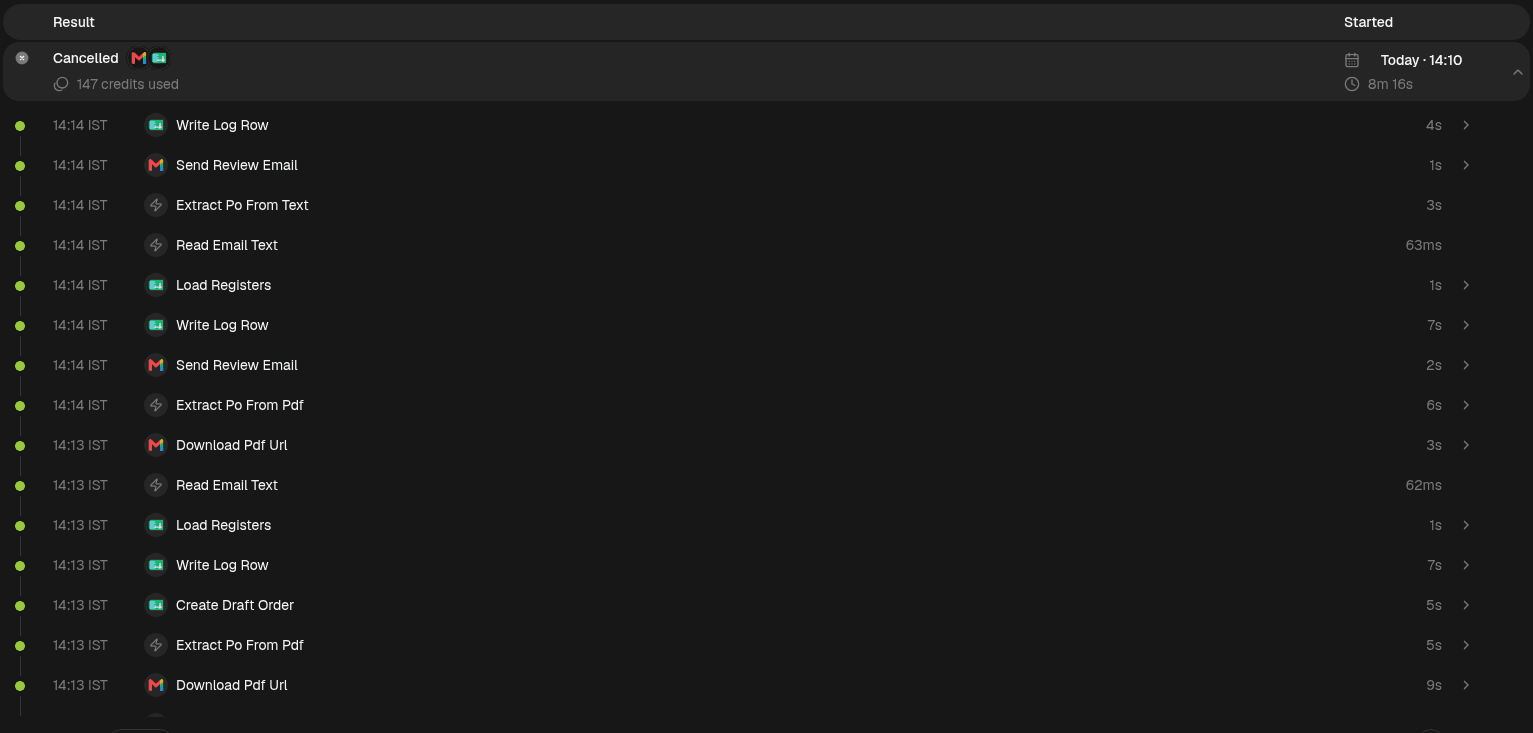
One run opened in the agent's Activity log. Each line is a step, with the app it used, when it ran, and how long it took. This run handled all three example POs: one became a draft order, and two were sent for review.
The rules it checks
Your rules decide what counts as a correct order. The agent checks each one against what is in your order system.
| Rule | What the agent compares |
|---|---|
| The customer is in your system | The customer it found, against your customer list |
| Every item is in your system | Each item on the PO, against your items |
| Each price matches the agreed price | Each price on the PO, against the price agreed with this customer |
| Each quantity is within the limit | Each quantity, against the lowest and highest quantity your team set for this customer |
| The PO hasn't been entered before | The PO number, against this customer's past orders |
| The ship-to address and requested date are there | What the agent picked out, against what every order needs |
When something doesn't match
Each kind of problem goes to a person for a different reason. The person sees what the agent wants to do and why it stopped, so they don't have to start from scratch.
| Problem | What the agent does | What the person does |
|---|---|---|
| Customer not found | Stops before creating anything and sends the PO to a person | Works out who sent it |
| Price doesn't match the agreed price | Holds those lines until someone approves them | Reviews the flagged price difference |
| Item not found | Sends the PO to a person with that line marked | Works out which item the customer meant |
| Quantity above or below the customer's limit | Sends the PO to a person with that line marked | Checks whether the quantity is right |
| No ship-to address or requested date | Asks a person for the missing detail | Fills it in, and the agent carries on from there |
| PO number already entered | Stops before creating anything and sends the PO to a person | Checks whether it is a repeat or a new order |
AI reads. Rules decide.
AI can misread a price or a customer name, just as a person can. That is why a price below the agreed price or an unknown customer stops the job, instead of going into your order system just because the AI read it that way.
Which parts use AI
AI does the reading and understanding. Everything else follows set rules: given the same records and rules, the same input takes the same path (technical teams call these deterministic steps), as How Trelium Works explains.
| Stage | Done by | Why |
|---|---|---|
| 1. The PO arrives | Set rules | A new email in the inbox starts the job |
| 2. Read the email or document | AI | POs come in many layouts and wordings |
| 3. Work out who the customer is | AI | The sender and company name have to be read and matched to a customer |
| 4. Pick out the order details | AI | Items, quantities, and prices have to be read from the document |
| 5. Look things up | Set rules | Customers, items, agreed prices, and quantity limits come straight from your records |
| 6. Check against your rules | Set rules | Each rule is a comparison that works the same way every time |
| 7. Send problems to a person | A person | When a check fails, a person decides instead of the agent guessing |
| 8. Create the sales order draft | Set rules | The draft is only created after the checks pass and sign-offs are given |
| 9. Keep a record | Set rules | Every job is saved in the Activity log |
Example: three POs on a Monday morning
Three POs arrive in the orders inbox before the order desk starts work. The customers, people, and numbers are made up.
flowchart LR
A[PO 1: Lakeside Uniforms every check passes] --> D[Draft sales order created]
B[PO 2: Ridgeway Hardware two lines below agreed price] --> E[Order desk lead approves the lines] --> D
C[PO 3: Bellmont Outfitters customer not found] --> F[Sent to the order desk]
The orange boxes are where a person steps in before anything is created. Any draft that is created still waits for the order desk to release it.
PO 1: everything checks out
Rachel Morgan, a buyer at Lakeside Uniforms, emails PO LU-4471 as a PDF with three lines. The agent reads the PDF, matches the sender and the bill-to name to Lakeside Uniforms in your customer list, and picks out the three lines, the ship-to address, and the requested date. Every item is in your system, every price matches, every quantity is within Lakeside Uniforms' limit, and the PO is new. The agent creates a draft sales order, and the job is saved in the Activity log. PO 1 needs no review before the draft is created. The order desk still releases it.
PO 2: a price that doesn't match
Ridgeway Hardware sends PO RH-2208 as a PDF with two lines. Both are priced at $4.10 each, but the price agreed with Ridgeway Hardware is $4.35, about 6 percent more. The price check fails on both lines, so the agent stops before creating anything and sends the order desk lead a request to review them.
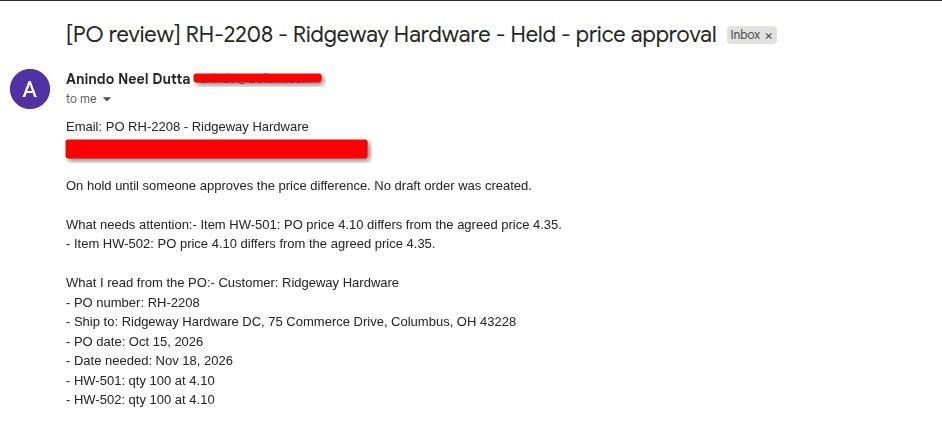
The review request for PO 2. It arrives by email, says nothing was created, lists the two lines with the PO price next to the agreed price, and shows what the agent read from the PO.
The order desk lead reviews the flagged price difference, with the PO price and the agreed price side by side. Sales had agreed the lower price for this order, so the lead approves the two lines. The agent carries on and creates the draft sales order. The Activity log records the run and its steps.
PO 3: a customer the agent can't find
A buyer from Bellmont Outfitters emails PO BO-3390, typed into the message. The agent reads the email and picks out the lines, but it can't find Bellmont Outfitters in your customer list. Without a customer, it has no agreed prices to check against.
The agent stops before creating anything and sends the PO to the order desk, along with what it read. Nothing goes into the order system for this PO. The order desk deals with it the way they would deal with any new customer today.
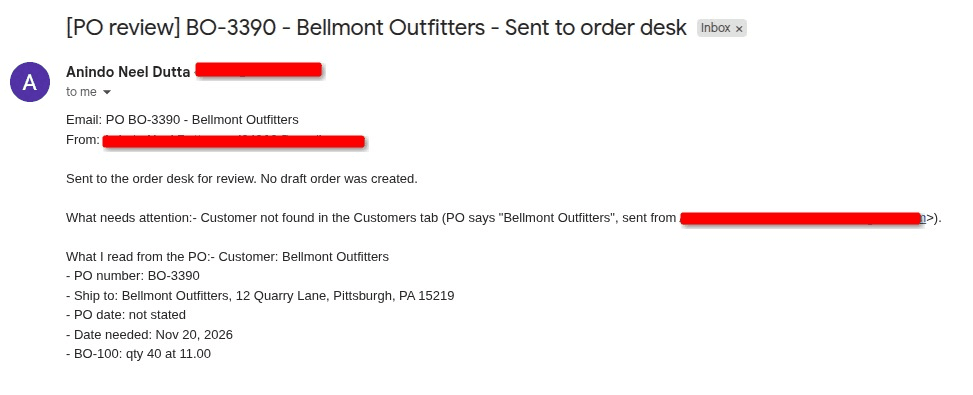
The message the order desk gets for PO 3. It says the customer could not be found, that nothing was created, and what the agent read from the email.
Before you build
Write your own plan with the Define a Workflow template, using your own customers, PO formats, and rules. Then try the agent on old POs your team has already entered, including a few that caused trouble. See Testing a Workflow.
Where to go next
Define a Workflow
Write your own version of this recipe.
Validation & Exceptions
How the agent decides what needs a person.
Human in the Loop
Where people review and sign off.
Logs & Audit Trails
What the Activity log keeps for each job.
Integrations
How the agent connects to your order system.
Invoice Matching
The same pattern applied to supplier invoices.
Define a Workflow
How to write down a job before a Trelium agent takes it on. Covers the eight things to write down (what starts the job, what comes in, which software is used, the steps, the rules, what can go wrong, where a person signs off, and the finished result), a filled-in example for entering purchase orders, and a blank template to copy.
Invoice Matching
How a Trelium agent checks a supplier invoice against the purchase order it belongs to before the bill goes into your accounting system. Covers what comes in, the software used, the stages, the rules it checks, item matching, when a person steps in, which parts use AI, and three example invoices.