
Connecting Systems
How your tools get connected to Trelium. Covers the six ways in, what your team does for each, and what a connected agent can do.
Connecting a system means giving a Trelium agent a safe way into a tool you already use. You do it once per system. After that, the agent can look things up and do work there, and your records stay where they are.
Your systems stay the source of record
Connecting is not migrating. Your order system, inbox, and other tools stay the official home for your data. The agent reads from them and writes results back. See Integrations for the bigger picture, and Security & Data for how Trelium handles the data an agent works with.
Six ways in
Every system is different, so Trelium has six ways to connect. Most tools work with more than one, and the Trelium team helps you pick during setup. Open the one that sounds like your situation.
Many modern tools can hand out an API key. Think of it as a spare key cut just for Trelium: a long, generated password that lets the agent use the tool's built-in connection for other software.
Because the key is separate from anyone's own login, many tools let you limit what it opens and take it back without affecting your team's accounts.
Your side: an admin creates the key in the tool's settings and passes it along during setup.
You have seen this before: "Sign in with Google" or "Allow this app to access your account". The tool itself asks you to approve what Trelium can do, so Trelium never sees your password.
It is common for email, calendars, and file storage.
Your side: you follow the tool's own sign-in page and approve the permissions it lists. To take access away later, you do it in that tool, not in Trelium.
Sometimes the facts an agent needs are stored in the system's database but the tool never shows them. In that case Trelium can read the database directly. This suits checking and reporting work, such as reconciling records.
Your side: your IT team creates a login for the agent and decides what it can see. Read-only access is common.
Older systems often cannot talk to other software but can produce a spreadsheet or CSV file. A file drop is a shared folder where that file lands on a cadence your team agrees. A scheduled agent picks it up from there. These docs treat that as a scheduled pickup, not a separate product guarantee that every new file instantly starts a run.
Your side: your team sets up the export and the shared folder, and agrees on the file layout and how often it arrives.
If orders, invoices, or requests already land in an inbox, the agent can watch that inbox and start work when a new message arrives. Nothing else about how your customers or suppliers work has to change.
Your side: you connect the mailbox the agent should read. A shared mailbox, like orders@ or accounts@, works better than someone's personal one.
For old portals and tools that were never built to share anything, a browser agent does what a person would: it logs in, opens pages, and fills in fields.
Your side: you create a separate user account for the agent, just as you would for a new hire. That keeps its activity easy to tell apart from your team's. See Browser Agents for how it works once it is logged in.
In Trelium, the systems you have connected are listed under Integrations, on the Connected apps tab. Each app shows how many workflows use it and how many accounts are connected, and Connect an app adds a new one.
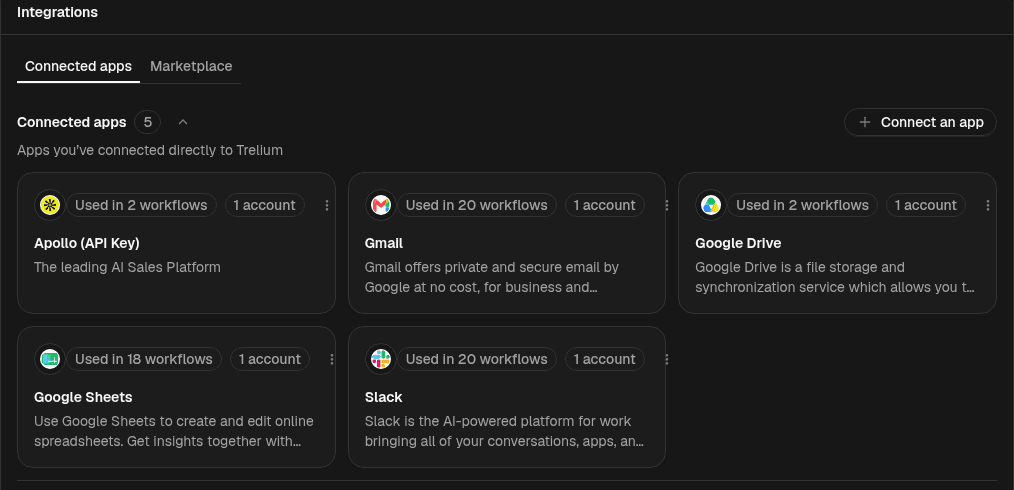
The Connected apps tab under Integrations. Apollo is connected with an API key, and each app shows how many workflows use it.
What a connected agent can do
Once a system is connected, the agent gains three abilities.
Read
Look things up, such as an order status, a customer record, or a balance. One job can read from several systems in turn.
Write
Create and update records, but only as far as the connection allows. A read-only connection means read-only work.
Start a job
A connection can also be where work starts, such as a new email in a connected inbox. See Triggers & Inputs for what can start a run.
You still make the big calls
Being connected does not mean the agent acts alone on everything. Anything your process reserves for a person, such as approving a change before it is saved, still goes to that person. See Human in the Loop.
Example: checking last night's shipments
Say your warehouse ships orders all day and saves a shipment file to a shared folder every night. Two connections cover the whole check: the folder, and your ERP. A schedule starts the agent each morning.
The agent picks up the file
On its morning schedule, the agent opens the newest shipment file in the shared folder.
The agent checks each line
For every line in the file, the agent looks up the matching order in your ERP and compares the item, quantity, and address.
Mismatches are flagged
Lines that agree need nothing more. Lines that do not are flagged, along with what the ERP expected and what the file said.
Your team decides
Your team reviews the flagged lines. Nothing is corrected in the ERP until a person approves it.
The folder brings the data in and the ERP supplies the facts to check it against. The automatic part stops at the flag. A person decides what happens next.
Where to go next
Integrations
What an integration is, and why connecting never means migrating.
Browser Agents
How an agent works inside a web interface when there is no API.
Human in the Loop
Where approvals fit when an agent reads and writes in your systems.
Triggers & Inputs
What starts a run, and what the agent receives when it starts.
Integrations
Trelium agents connect to the systems you already use, through an API where one exists and through the web interface where it does not. Nothing is migrated or replaced.
Browser Agents
Trelium can automate software that has no API. A browser agent works in the tool's web interface the way a person logging in would, using a dedicated account you create for it.